What a backup is here
A backup is a text export of the configuration — the RouterOS script form, the same thing you would get from an export on the device itself, stored in the manager's database. Downloading one gives you a .rsc file.
Download all at once. The Download all (.zip) button at the top of the Backups page collects the newest backup of every device you can see into a single archive, organised as <site>/<device>_<date>.rsc (devices with no site go under _unassigned). It follows your access the same way the rest of the page does: you get the sites you manage, an unrestricted admin gets the whole fleet. It is one snapshot per device — the latest — not the full history.
When more than one group is visible — your sites, plus the ungrouped devices if you have any — the button asks what to include first: everything you can see, or one group on its own. With only one group there is nothing to choose, so the download starts straight away.
It is not the binary backup file RouterOS can also produce. That difference matters in both directions: a text export is readable, diffable and portable between devices of the same model, but it is not a byte-for-byte image of the device.
It is taken over SSH, always. RouterOS does not offer /export through its REST interface, so a device you manage over REST is still exported over SSH — if SSH cannot reach it, it has no backup path at all. SNMP-only devices cannot be exported by any route.
.rsc like a password file. Taking and reading backups requires the admin or operator role; deleting one requires admin.Where the fleet stands
The Backups page opens with a summary of every device you can see: how many are covered, and what is wrong with the rest. It is the answer to "are we backing everything up", without reading the list device by device.
The rest is split by what is actually wrong, because the four cases need different work:
| Count | What it means |
|---|---|
| No backup | No export has ever been stored for that device. |
| Incomplete latest | The newest stored export is one of the cut-short ones described below, and the good backup that had replaced it is gone — pruned by retention, or deleted. That device's latest stored configuration is not a usable restore point. |
| Overdue | A schedule exists and has missed two runs in a row. One missed run — a device offline for an hour, a restart — is not reported; the second consecutive miss is a pattern. |
| No schedule | Nothing backs that device up on its own: no schedule of its own, no site policy, no global default. A device you back up by hand appears here, however recent its last export — it is not called overdue, because there is no schedule for it to be late against. |
Click a count that is not zero to see the devices behind it, with when each was last backed up and its interval, and to act on them there — back one up now, or give it a schedule. The summary re-reads itself when an export finishes or a schedule changes, so a gap you close stops being shown.
Disabled devices and SNMP-only devices are left out of the totals entirely. The manager never backs those up, so counting them as gaps would report work that does not exist. Everything in the summary is read from the manager's own database — no device is contacted to produce it.
Completeness and change detection
An export that arrives cut short is worse than no export: it looks like a backup and is not one. A read whose connection dies part-way now fails outright instead of being stored, and every stored export is re-examined when the next one arrives — anything that turns out not to hold a whole configuration is marked incomplete in the list so it is never mistaken for a usable restore point.
The test is deliberately one-directional. A stored config that is a strict prefix of a later one was truncated in transit — configuration that reappears was never really deleted. The reverse, a later export being shorter, is a real deletion someone made, and is left alone.
An export that matches the previous one exactly is not stored a second time. The existing entry is refreshed instead, keeping the date it first covered and counting the runs since, which is why a device nobody touches does not fill the list with identical copies.
Two more things the list tells you:
- Whether the configuration changed since the previous backup. The date and identity header that RouterOS puts at the top of every export is ignored for this, otherwise every single backup would look changed.
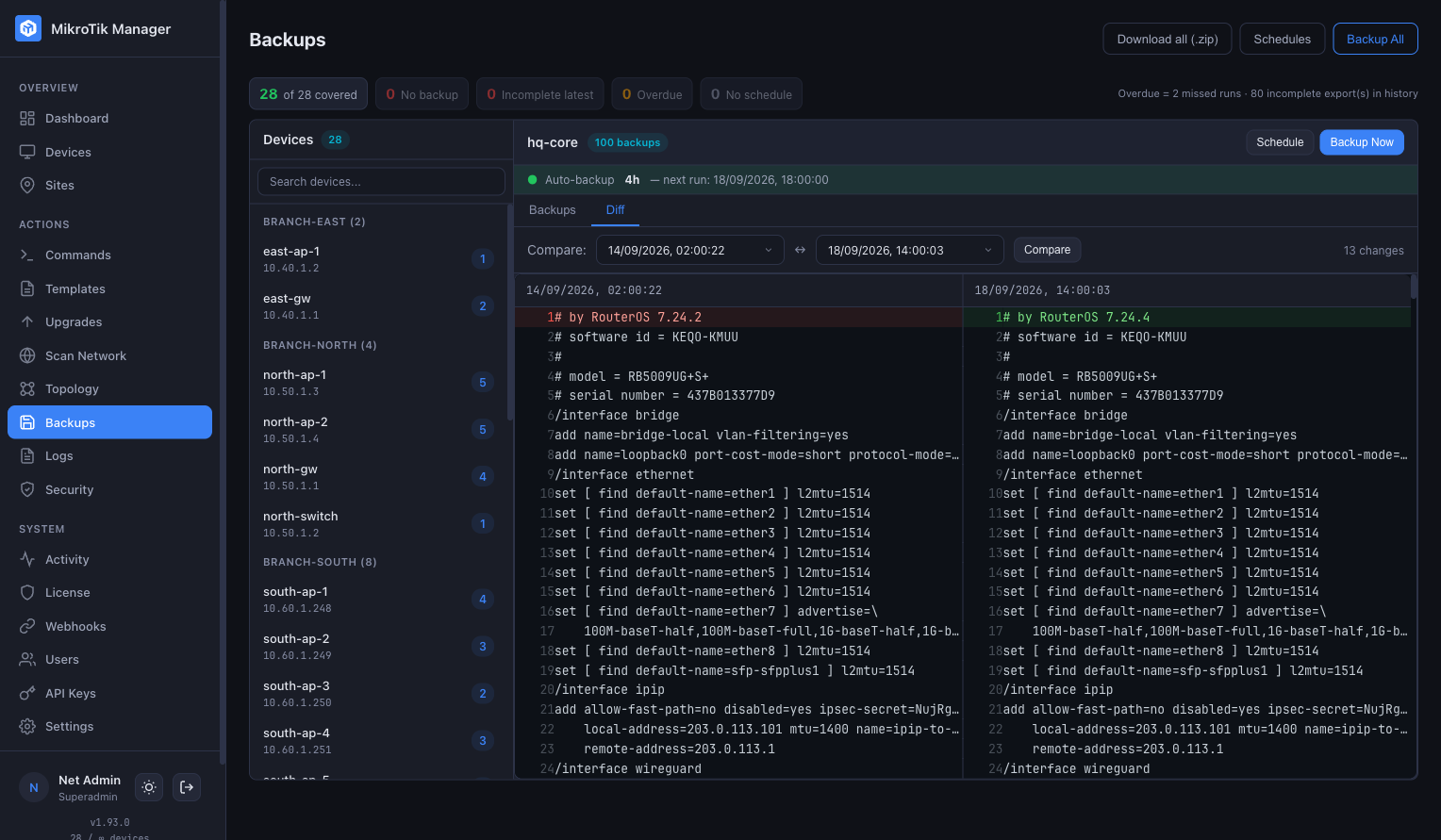
- A side-by-side diff between any two backups of a device — the fastest way to answer "what did we change last Tuesday".
Schedules and how they inherit
Backups can run on a schedule at three levels. They resolve in a fixed order, and knowing it saves a lot of confusion:
| Level | Behaviour |
|---|---|
| Per-device, set by hand | Always wins. Once you set a device's schedule explicitly, no site or global policy overwrites it again. |
| Per-site | Every device in the site inherits it, including devices added later. Overrides the global default. |
| Global default | A fallback for sites with no schedule of their own, so a newly created site is covered without anyone opening the Backups page. Off unless you turn it on. |
Remove a site policy and its devices fall back to the global default if one is switched on, and lose their inherited schedule if it is not. Hand-set device schedules stay either way, because they were never inherited in the first place.
Intervals run from hourly to weekly — 1, 2, 4, 6, 8, 10, 12, 24 or 48 hours, or every 7 days — and every schedule carries a start time, which you enter in your own time zone and the manager keeps in UTC.
Schedules can also be applied to a whole site or to every device you can see in one pass. Setting them across devices that way counts as setting each one by hand, so those devices stop following any site policy afterwards; to keep a site's devices following the site, set the schedule on the site itself.
Retention
A schedule can prune its own history by count, by age, or both — keep the last N, keep anything newer than N days. Both are empty to begin with, which means nothing is ever deleted until you set one. Site and global policies carry the same two fields, and a device that inherits the schedule inherits them with it.
Pruning runs after each scheduled backup, so a device that has stopped being backed up also stops being pruned, and a device with no schedule at all is never pruned.
What gets pruned is the device's whole history, not only the scheduled part of it: a backup you took by hand is counted and dropped like any other. If one matters, download it.
Mirroring to a volume
Optionally, each successful backup is also written to a file on disk — one .rsc per device, organised by site, overwritten each time. It is off by default; turn it on in Settings.
The files land in an exports folder inside the manager's own data directory, which is already the volume you mount for the database — /app/data/exports in the container, data/exports beside the compose file on the host. There is no second volume to add.
This is what makes it possible to keep a copy outside the manager: point the host side of that volume at a separate disk, point a git checkout at it and commit after each write for a free change history, or sync it to a NAS. The manager only ever writes there — it never deletes, so a renamed or removed device leaves its old file behind and housekeeping is yours.
A failed write does not fail the backup. The copy in the database is the authoritative one; the files are a mirror of it.
No restore — what to do instead
Say it plainly: the manager cannot push a configuration back onto a device. There is no restore button, and nothing on the Backups page will rebuild a router for you. What you have is a verified, dated, diffable copy of the configuration and a download link.
Restoring is therefore a RouterOS operation you carry out yourself: put the .rsc on the device and let RouterOS run it.
import file-name=address.rscThe parameters worth knowing are verbose, which executes line by line and makes a failure findable, dry-run, which simulates the import without changing anything, and from-line, which resumes at a given line. The last two are available in verbose mode.
Full detail is the vendor's: Configuration Management — Configuration Import.
Three consequences worth planning around:
- A text export is not a bare-metal image. It is the record of how a device was configured, not a one-click rebuild.
- Because import merges, a restore is a deliberate procedure — reset, then import, then verify — not something to attempt in a hurry on a device that is still half working.
- If a backup matters for disaster recovery, get it off the manager: the mirror volume above, or downloads kept elsewhere. A backup that only exists next to the thing it protects is one failure away from being no backup.