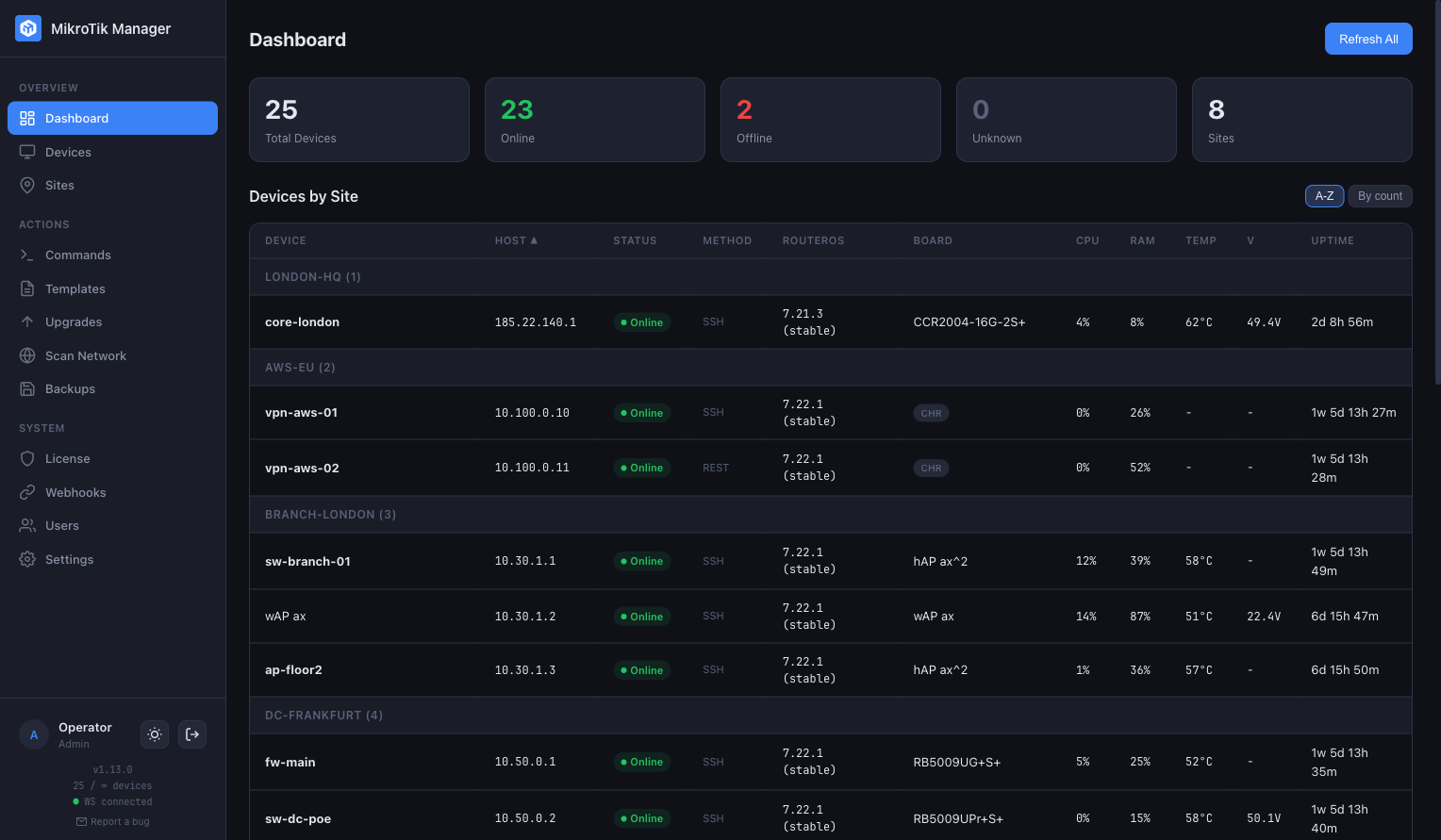
The status tiles
Each tile is a filter as well as a count — clicking one narrows the table below it.
| Tile | Counts |
|---|---|
| Total Devices | Every enabled device. Disabled ones are excluded from this and from every other tile |
| Online | The last poll succeeded |
| Not accessible | The host answers on the network but the poll failed. Shown only when there is at least one. A device where a different router answers, shown as Other device, is counted here too |
| Offline | The poll failed and the host did not answer on the network either |
| Unknown | Never polled yet — a device added a moment ago sits here until the first poll |
| Sites | How many sites exist |
| Disabled | Devices switched off in their own settings. Shown only when there is at least one |
The distinction between Offline and Not accessible is worth internalising, because it points at different faults. Offline is nothing answering at all. Not accessible is something answering on the management port while the poll fails — most often the device itself with SSH wedged, the API switched off, or a firewall rule that arrived with a configuration change, but a reassigned address or refused credentials look the same from outside, so treat it as a lead rather than a verdict. The Troubleshooting page goes through what to do about each.
A scoped user sees only their own sites' devices, so the tiles count their fleet and not yours.
The two banners
Above the tiles, two things can appear. Neither is decoration and both are worth reading before you dismiss them.
- A new manager version. Shown when a release newer than the one you are running exists, with a link to it. Dismissible; it is about the manager itself, not about your routers.
- Security advisories. Shown only when High or Critical advisories match at least one device you can see — not for Medium, not for a fleet where nothing matches. Clicking it opens the Security page.
The device table
Devices are grouped by site, with the ungrouped ones together at the end. Each row carries the name, host, status, connection method, RouterOS version, board, CPU, RAM, temperature, voltage and uptime — temperature and voltage stay empty on boards that report no such sensor.
Sites sort alphabetically or by device count; devices sort by name, host, status, board, CPU, RAM or uptime, in either direction, by clicking a column header. Both choices are remembered in your browser, so the order you like survives a reload. The device order is the same one the Devices page and the phone list use: change it in one place and the others follow. It starts as name, A to Z. (v1.107.0+) Site groups can be collapsed.
The search box above the table, and above the list on a phone, narrows it by name, host, tag or notes, the same way the search on the Devices page does, and works together with the status tiles. (v1.107.0+)
On a phone the same data becomes a list with three filter chips — all, offline, outdated — and a banner naming the offline devices. An entry that is not answering carries the state and when the device was last seen, rather than the metric bars it has nothing to fill. "Outdated" means the device is behind the newest version the manager knows about for it, which is the same signal the Upgrades page works from.
Stale rows
A row that fades and picks up a STALE badge is saying that the manager has stopped hearing about that device — not that the device is down. The two are different: a device is offline when a poll actually failed, and stale when no update has arrived for longer than it should have.
The threshold follows each device's own poll interval — two and a half times it, and never less than ninety seconds. That matters on a fleet with mixed intervals: a device deliberately polled every twenty-four minutes is not marked stale merely for ticking slowly, which is what a single fleet-wide threshold would do to it.
In practice a page full of stale rows usually means the browser's connection to the manager has dropped rather than anything about the routers. It reconnects on its own; a reload settles it immediately.
Refresh All
The button forces a poll now instead of waiting for the next scheduled one. It is available to operators and administrators, and it covers the devices you can see — a site-scoped operator does not set the whole fleet polling.
If a poll cycle is already running, the button says so rather than starting a second one on top of it.
The task tray
Long operations — upgrades, an upgrade queue, configuration exports, update checks, network scans — do not belong to the page that started them. The tray keeps them visible from anywhere, so walking to another screen or reloading does not hide what the server is doing.
Each task carries its own log, so two operations running at once cannot smear into one another. Statuses are running, done, cancelled, failed, and interrupted — the last meaning the manager restarted while that task was running, rather than the task itself going wrong. A finished task lingers for a minute so the outcome is readable instead of vanishing the instant the last device reports.
The tray reads from the server rather than from what your browser happened to see, and it is scoped to you: the tasks you started, not everyone's.
Sites
A site is a name, a location and a description, and every device belongs to one or to none. That is the whole of the model — the value is in what else keys off it:
- Grouping on the dashboard, the device list and the topology map.
- Access — a user can be scoped to sites, and then sees nothing outside them. Site membership is assigned on the site itself, and the Users and Access page covers what scope does.
- Backup policy — a site can carry a schedule that its devices inherit. See Backups.
- Webhook scope — a webhook can be narrowed to one or more sites. See Webhooks.
- Topology — the map is drawn per site.
The Sites page lists them with their device counts and is where they are created, edited and deleted. A site that still has devices in it cannot be deleted — move or remove the devices first. That refusal is deliberate: deleting a site is a tidying action, and it should not be able to quietly orphan a device or take it out of somebody's scope as a side effect.
Devices also carry free-form tags, which are a different tool for a different job: a site says where a device is, a tag says what it is for. Tags are what the Commands page selects by and what a webhook can be narrowed to alongside sites.